

Using JSON keys to authenticate with Google Cloud is highly frowned upon. Unless you have no other option, Google Cloud provides a more secure means of authenticating externally executed code. My use case is for authentication in GitLab pipelines so that I can automate tasks. Think Terraform jobs or updating the files for a website stored in a Google Cloud storage bucket. I will use Google Cloud’s Workload Identity Federation solution and the OIDC (Open ID Connect) protocol in this solution.
To get started, here are a few requirements:
- A GitLab project that will contain the pipeline code.
- A Google Cloud project with a service to grant access to. I refer to this as the service project below.
- Create a Google Cloud project specifically for Workload Identity
gcloud projects create workload-id --no-enable-cloud-apis

gcloud config set project workload-idValidate that you have the roles/iam.workloadIdentityPoolAdmin role assigned to yourself on the project at a minimum or the roles/owner role if you are in a development environment.
- Enable the required APIs for Workload Identity
gcloud services enable \
  cloudresourcemanager.googleapis.com \
  iam.googleapis.com \
  iamcredentials.googleapis.com \
  sts.googleapis.com \
--project="workload-id"- Define a few variables.
WIP_PROJECT_ID=$(gcloud projects describe $(gcloud config get-value core/project) --format="get(projectId)")
WIP_PROJECT_NUMBER=$(gcloud projects describe $(gcloud config get-value core/project) --format="get(projectNumber)")
GITLAB_GROUP="originaltrini0-codes"
GITLAB_PROJECT_NUMBER="64700261"
WIP_NAME="test-wip"
WIP_PROVIDER_NAME="test-wip-provider"
SERVICE_PROJECT_ID="test-compute-443418"I organize my GitLab projects in groups. The parent group can be found in the URL: https://gitlab.com/your-group-name
Look for the GitLab project number under General -> Settings of a GitLab project
- Create a Workload Identity Pool
gcloud iam workload-identity-pools create $WIP_NAME \
  --location="global" \
  --display-name="Test WIP" \
  --description="Test Workload Identity Pool" \
--project="${WIP_PROJECT_ID}"- Create a Workload Identity Provider for GitLab
gcloud iam workload-identity-pools providers create-oidc $WIP_PROVIDER_NAME \
  --location="global" \
  --workload-identity-pool="${WIP_NAME}" \
  --description="Test Workload Identity OIDC Provider" \
  --display-name="Test Workload Identity Provider" \
  --issuer-uri="https://gitlab.com/" \
  --attribute-mapping="attribute.guest_access=assertion.guest_access,\
    attribute.planner_access=assertion.planner_access,\
    attribute.reporter_access=assertion.reporter_access,\
    attribute.developer_access=assertion.developer_access,\
    attribute.maintainer_access=assertion.maintainer_access,\
    attribute.owner_access=assertion.owner_access,\
    attribute.namespace_id=assertion.namespace_id,\
    attribute.namespace_path=assertion.namespace_path,\
    attribute.project_id=assertion.project_id,\
    attribute.project_path=assertion.project_path,\
    attribute.user_id=assertion.user_id,\
    attribute.user_login=assertion.user_login,\
    attribute.user_email=assertion.user_email,\
    attribute.user_access_level=assertion.user_access_level,\
    google.subject=assertion.sub" \
  --attribute-condition="assertion.namespace_id==\"${GITLAB_GROUP}\"" \
--project="${WIP_PROJECT_ID}"Use the --attribute-condition to fine tune the parameters in the GitLab assertion to match against. [link]
- Create a service account for impersonation in the service project
gcloud iam service-accounts create test-svc-acct \
  --display-name="Test Service Account" \
--project="${SERVICE_PROJECT_ID}"- Create a storage bucket in the service project and upload test files to it
gcloud storage buckets create gs://gms-bucket-2024 \
  --project="${SERVICE_PROJECT_ID}"

gcloud storage cp ~/Downloads/*.jpg gs://gms-bucket-2024- Get the service project’s service account email address and grant it the Workload Identity User role
SERVICE_ACCOUNT_EMAIL=$(gcloud iam service-accounts list --project="${SERVICE_PROJECT_ID}" --filter="email~test-svc-acct" --format="get(email)")

gcloud iam service-accounts add-iam-policy-binding $SERVICE_ACCOUNT_EMAIL \
  --role=roles/iam.workloadIdentityUser \
  --member="principalSet://iam.googleapis.com/projects/${WIP_PROJECT_NUMBER}/locations/global/workloadIdentityPools/${WIP_NAME}/attribute.project_id/${GITLAB_PROJECT_NUMBER}" \
--project="${SERVICE_PROJECT_ID}"- Grant the service account the
roles/storage.objectAdminrole to the storage bucket
gcloud storage buckets add-iam-policy-binding gs://gms-bucket-2024 \
  --member=serviceAccount:$SERVICE_ACCOUNT_EMAIL \
  --role=roles/storage.objectAdmin \
--project="${SERVICE_PROJECT_ID}"- In your GitLab project, commit a
.gitlab-ci.ymlfile with the following content
stages:
  - auth

auth:
  variables:
    GOOGLE_CLOUD_PROJECT: test-compute-443418
    GOOGLE_SERVICE_ACCOUNT_EMAIL: [email protected]
    GOOGLE_WORKLOAD_IDENTITY_PROVIDER: projects/722905479622/locations/global/workloadIdentityPools/test-wip/providers/test-wip-provider
  image: docker.io/google/cloud-sdk:slim
  id_tokens:
    GITLAB_OIDC_TOKEN:
      aud: https://iam.googleapis.com/projects/722905479622/locations/global/workloadIdentityPools/test-wip/providers/test-wip-provider
  script:
    - mkdir -p _google_auth
    - echo "${GITLAB_OIDC_TOKEN}" > $CI_PROJECT_DIR/_google_auth/.ci_job_jwt_file
    - gcloud iam workload-identity-pools create-cred-config ${GOOGLE_WORKLOAD_IDENTITY_PROVIDER}
      --service-account="${GOOGLE_SERVICE_ACCOUNT_EMAIL}"
      --service-account-token-lifetime-seconds=600
      --output-file=$CI_PROJECT_DIR/_google_auth/.gcp_temp_cred.json
      --credential-source-file=$CI_PROJECT_DIR/_google_auth/.ci_job_jwt_file
    - gcloud config set project test-compute-443418
    - gcloud auth login --cred-file=$CI_PROJECT_DIR/_google_auth/.gcp_temp_cred.json
    - gcloud storage ls gs://gms-bucket-2024
  stage: auth
  when: manual
Manually trigger the job
Review the job’s progress. The results show that the GitLab runner can authenticate and list the files in the storage bucket
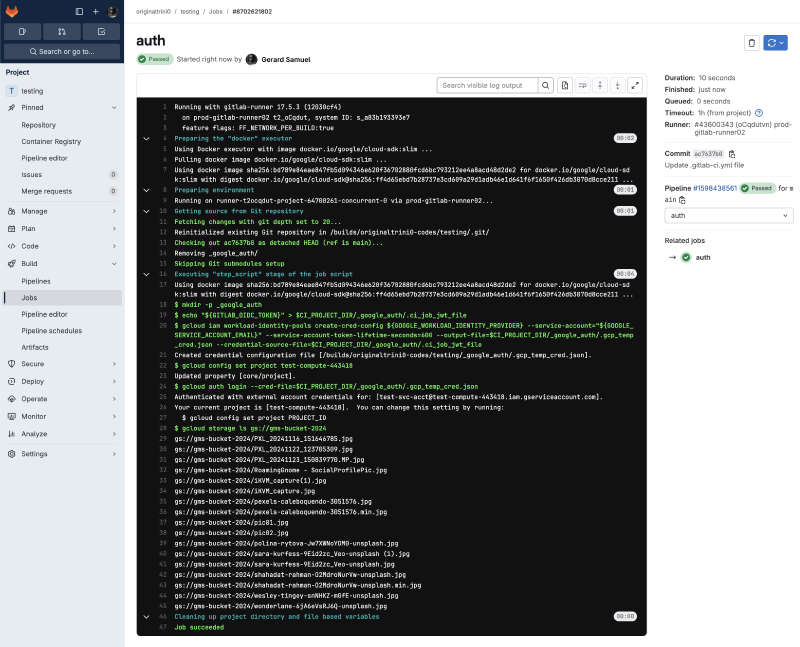
Gitlab pipeline results Go to Logs Explorer for the service project, and run the following query
protoPayload.methodName="GenerateAccessToken" AND
protoPayload.authorizationInfo.granted="true"- You should find the corresponding log entry similar to this screenshot where the GitLab runner authenticates to Google Cloud
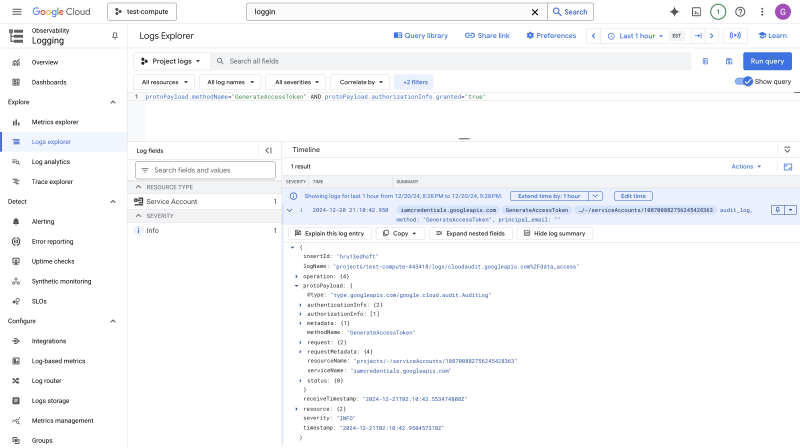
Authentication logs in Google Cloud Logging
Conclusion#
In this article, I demonstrate how to enable and configure a Workload Identity Pool and Provider that uses GitLab’s assertion data to grant access to Google Cloud. For more information about Workload Identity Federation, visit the documentation page.